

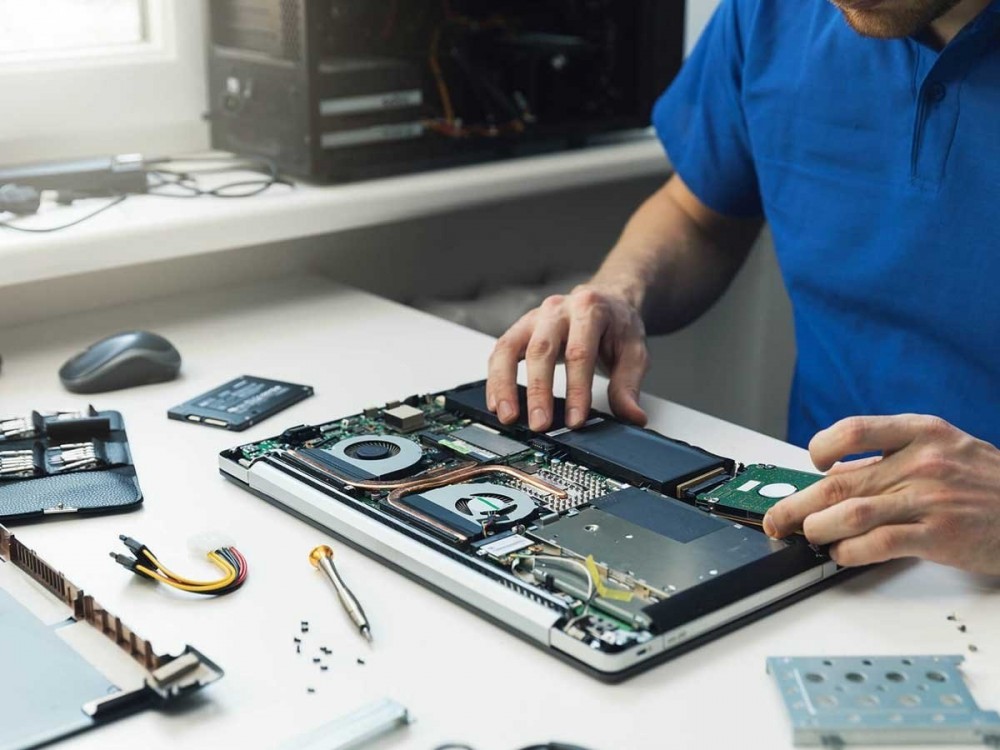
1. Slow Laptop Performance
A sluggish laptop can be frustrating, but it’s a problem that can often be fixed.
Causes:
-
Too many programs running in the background.
-
Hard drive is nearly full or fragmented.
-
Malware or outdated software.
How to Fix It:
-
Close unnecessary programs: Check your Task Manager (Windows) or Activity Monitor (Mac) to end tasks that are using too much memory.
-
Free up space: Delete unused files, clear cache, and uninstall unnecessary programs.

-
Defragment your hard drive (for HDD users): This can optimize storage and speed up access.
-
Run antivirus software: Scan for malware that could be slowing down your laptop.
-
Upgrade your RAM: If your laptop allows, adding more memory can improve speed significantly.
2. Laptop Won’t Turn On
A laptop that won’t power up is a common but worrying problem.
Causes:
-
Battery issues or no charge.
-
Hardware failure (e.g., motherboard issues).
-
Loose or damaged power cables.
How to Fix It:
-
Check the charger: Ensure the charger and power cable are properly connected and undamaged.
-
Test the battery: If your laptop has a removable battery, take it out, wait a few seconds, and reinsert it.
-
Try a hard reset: Hold the power button for 30 seconds to reset any minor software or hardware glitch.
-
Try a different power outlet or charger to rule out electrical issues.
3. Overheating Laptop
Laptops tend to overheat, especially after prolonged use, leading to performance issues or even system crashes.
Causes:
-
Dust buildup blocking fans and vents.
-
Running high-performance tasks (e.g., gaming, video editing) without proper cooling.
-
Malfunctioning cooling fan.
How to Fix It:
-
Clean vents and fans: Use compressed air to clear dust and dirt.
-
Use a cooling pad: This helps to keep your laptop cool during heavy use.
-
Ensure proper ventilation: Don’t block the vents by using your laptop on soft surfaces like beds or couches.
-
Replace the thermal paste: If you’re comfortable opening your laptop, replacing the thermal paste can help with heat dissipation.
4. Broken or Flickering Screen
A flickering or completely black screen can be both annoying and disorienting.
Causes:
-
Faulty cables or connections.
-
Driver issues or corrupt software.
-
Physical damage to the screen.
How to Fix It:
-
Check the display connection: If you’re using an external monitor, make sure the cable isn’t damaged or loose.
-
Update display drivers: Sometimes a software update or driver issue can cause display problems.
-
Use an external monitor: If the internal display is damaged, plugging your laptop into an external monitor can help.
-
Replace the screen: If physical damage has occurred, you may need to replace the screen entirely.
5. Wi-Fi Connectivity Issues
Wi-Fi problems are frustrating but can usually be solved with a few simple checks.
Causes:
-
Router or network issues.
-
Outdated or missing drivers.
-
Conflicting network settings.
How to Fix It:
-
Restart the router: Sometimes a simple reset can fix connectivity issues.
-
Update Wi-Fi drivers: Ensure your network drivers are up to date.
-
Forget and reconnect: Go to your Wi-Fi settings, forget the network, and reconnect by entering the password.
-
Check for interference: Move your laptop closer to the router to reduce interference from other devices.
6. Battery Drainage or Not Charging
If your laptop is draining battery quickly or not charging, it could be due to various factors.
Causes:
-
Aging battery.
-
Power-hungry apps running in the background.
-
Faulty charger or charging port.
How to Fix It:
-
Close unused apps: Make sure you’re not running background apps that are using power.
-
Check the charging port and cable: Look for visible damage or dirt in the charging port.
-
Calibrate the battery: Fully discharge and then fully charge the battery to recalibrate its battery meter.
-
Replace the battery: If the battery is old or damaged, replacing it might be the only solution.
7. Keyboard Not Working Properly
Unresponsive or sticky keys can make typing on your laptop a frustrating experience.
Causes:
-
Dirt or debris under the keys.
-
Software issues.
-
Physical damage to the keyboard.
How to Fix It:
-
Clean the keyboard: Use compressed air to blow out any debris.
-
Restart the laptop: Sometimes a simple reboot can fix unresponsive keys.
-
Check keyboard settings: Ensure the correct input language and keyboard settings are selected.
-
Replace the keyboard: If keys are physically damaged, you may need to replace the keyboard.
8. Laptop Freezes or Crashes
Frequent freezing or crashing of your laptop can be caused by both hardware and software issues.
Causes:
-
Outdated software or drivers.
-
Insufficient RAM or storage.
-
Corrupted system files.
How to Fix It:
-
Update software and drivers: Ensure your OS and apps are up-to-date.
-
Check for malware: Run an antivirus scan to rule out viruses or malware.
-
Perform a system restore: If the issue started recently, a system restore to an earlier point may fix the problem.
-
Upgrade hardware: If your laptop is old, upgrading the RAM or hard drive can improve stability.
9. USB Ports Not Working
USB ports that aren’t working can make connecting external devices like flash drives or printers impossible.
Causes:
-
Faulty hardware.
-
Driver or software conflicts.
-
Static electricity buildup.
How to Fix It:
-
Restart your laptop: This can sometimes resolve minor software glitches.
-
Update USB drivers: Go to Device Manager (Windows) or System Preferences (Mac) to check for driver updates.
-
Clear static charge: Unplug your laptop, hold down the power button for 30 seconds, and then plug it back in.
-
Check for physical damage: If the port is physically damaged, it may need to be repaired.
10. Laptop Speakers Not Working
If your laptop’s speakers aren’t producing sound, it can be frustrating during calls, videos, or music listening.
Causes:
-
Muted or low volume settings.
-
Faulty audio drivers.
-
Software conflicts.
How to Fix It:
-
Check volume settings: Ensure that the sound isn’t muted or turned down too low.
-
Update audio drivers: Outdated drivers may cause sound issues, so make sure they’re up-to-date.
-
Try external speakers or headphones: If the internal speakers aren’t working, test with external audio devices.
-
Run the audio troubleshooter (Windows): Windows has a built-in tool that can help identify and fix sound ssues.
Conclusion
These are just some of the most common laptop problems that many users face. While some issues are easy to fix yourself, others may require a bit more expertise. Regular maintenance, such as cleaning your laptop, updating software, and monitoring its performance, can help prevent many of these issues from cropping up in the first place.





